Having trouble logging into OnlyFans? Follow these simple steps to sign in to your OnlyFans account.
How to Login to OnlyFans
Open your preferred web browser and go to OnlyFans.com.
A login page will appear where you need to enter your email address and password.
Click on the Email address and type the email address.
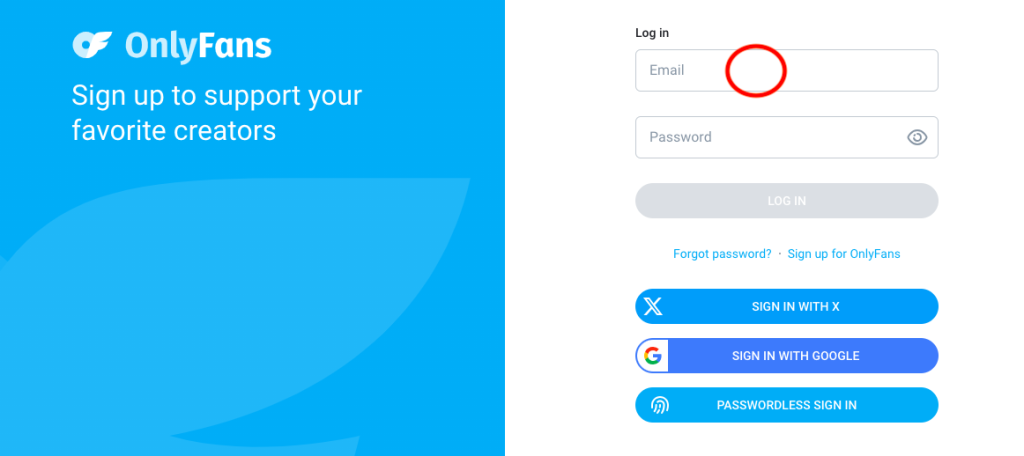
Click on the Password and type the password of your Onlyfans account.
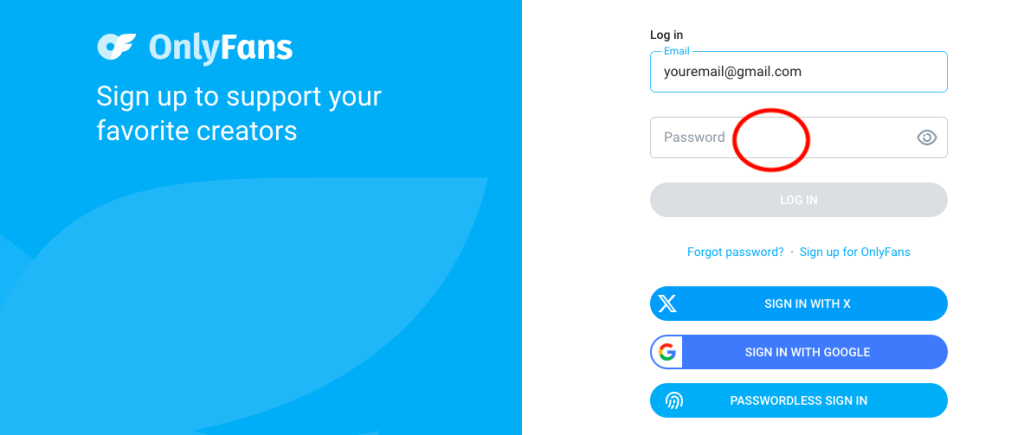
After typing both email and password click on the login button. If you have used Google or Twitter account to sign up, you can use those options to log in by clicking on the respective buttons.
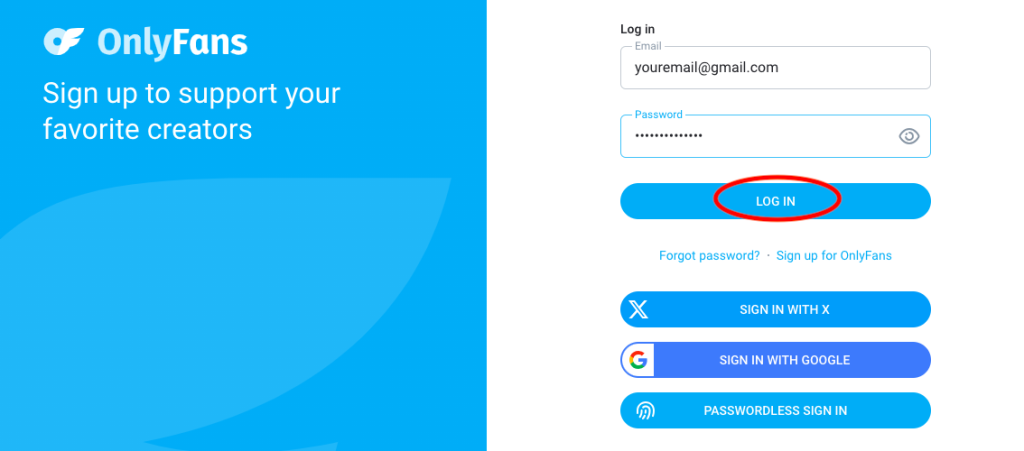
If you have enabled two-factor authentication, you must enter the verification code sent to your email or mobile.
Once the information provided are correct, you will be logged into your OnlyFans account and able to access your dashboard.
If you encounter any issues logging in, make sure to:
- Check your internet connection.
- Verify that your email and password are correct.
- Use the “Forgot Password?” link if you need to reset your password.
- Contact OnlyFans support for further assistance if necessary.
How to Log In OnlyFans Using the Mobile App
The OnlyFans mobile app offers quick access for users who prefer phones.
Steps to follow:
- Open the official app downloaded from a trusted store.
- Tap the Log In option on the first screen.
- Enter email and password.
- Complete verification steps if asked.
Many people keep sessions active on mobile to avoid constant sign-ins. That choice increases convenience but also raises security risks when phones are lost or stolen.
Logging In with Twitter or Google Accounts
OnlyFans supports social login options, offering a faster sign-in flow.
Supported methods:
- Google account login
- Twitter account login
Social login reduces the need to remember passwords. However, losing access to those linked accounts prevents OnlyFans sign-in until recovery steps are completed.
A sudden password reset on Google or Twitter sometimes triggers a temporary login block on OnlyFans.
Forgotten Password Recovery
A forgotten password remains one of the most common login issues.
Password reset steps:
- Open the OnlyFans login page.
- Click Forgot Password?
- Enter the registered email.
- Wait for the password reset email.
- Click the link provided.
- Create a new password.
The reset email sometimes lands in spam folders. Checking spam and promotions folders saves time. Email delivery delays happen due to mail provider filters.
Password creation tips:
- Use a mix of letters and numbers
- Avoid using the same password on multiple accounts
- Keep the password stored in a secure manager
Common OnlyFans Login Errors and Fixes
Login errors often frustrate users. A few simple checks solve most problems.
Frequent issues:
- Wrong password
- Incorrect email
- Disabled cookies
- Browser cache problems
- VPN blocking access
- Suspicious login attempt flags
Solutions:
- Clear browser cache and cookies
- Turn off VPN or proxy
- Update browser
- Disable strict ad blockers
- Retry login on another device
A sudden location change triggers security alerts. Logging in from another country sometimes requires email confirmation.
Account Locked or Suspended
Account locks occur when the system detects unusual activity or multiple failed logins.
Possible triggers:
- Too many wrong password attempts
- Hacked account suspicion
- Payment disputes
- Policy violations
An account lock usually lasts a short period, but serious cases require support contact. Providing proof of ownership speeds up recovery.
Security Tips for Safe Login
OnlyFans accounts often contain personal data and payment information. Protecting access should be a priority.
Helpful security habits:
- Use strong passwords
- Enable 2FA
- Avoid public Wi-Fi for login
- Log out on shared devices
- Avoid storing passwords in plain text
- Check for phishing emails pretending to be OnlyFans
A fake login page remains a common scam tactic. Always confirm the domain before entering credentials.
Regional Restrictions and Access Blocks
Some regions limit access to OnlyFans through network or government restrictions. A blocked page may show error screens or fail to load entirely.
Solutions include:
- Changing network
- Using trusted DNS options
- Avoiding unsafe VPNs
Unstable VPN connections often break the login process.
Also Read: